
As a Rush University student, you are responsible for purchasing your own computer and any other devices and services you need for studying and learning. We have assembled the resources below to help — from purchase discounts to a specification guide for reference while buying your computer.
Discounts and financial support
Rush offers discounted laptops and desktop computers through our partnership with Dell. However, students are free to purchase their devices from any website or retailer.
Computer specifications
When choosing the right computer to support your learning, here's what to look for:
Laptop computers
| Apple Laptops | ||
|---|---|---|
| For the... | Standard User | Power User |
| For users needing to use the computer for basic productivity, running multiple applications such as email, web browsing and word processing | For users running resource intensive programs for audio/video editing, graphic design, running multiple operating systems, storing large multimedia files and playing games | |
| Model | MacBook Pro 14” | MacBook Pro 16" |
| Processor | Apple M4 | Apple M4 Pro |
| Memory | 32GB Unified Memory | 48GB Unified Memory |
| Storage | 1TB SSD Storage | 1TB SSD Storage |
| Graphics | 14-inch Liquid Retina XDR display | 16-inch Liquid Retina XDR display |
| Network | Wi-Fi 6E, Bluetooth 5.3 | Wi-Fi 6E, Bluetooth 5.3 |
| Operating system | macOS Sequoia or higher | macOS Sequoia or higher |
| Windows Laptops | ||
| For the... | Standard User | Power User |
| Processor | Intel Core Ultra 5 processor 125H | Intel Core Ultra 7 processor 155H |
| Memory | 32GB | 32GB |
| Storage | 512GB PCIe NVMe SSD | 1TB PCIe NVMe SSD |
| Network | Wi-Fi 6E, Bluetooth 5.3 | Wi-Fi 6E, Bluetooth 5.3 |
| Graphics | Integrated graphics | Integrated graphics |
| Ports | 1 or more Thunderbolt 4 or USB4 Type-C, 1 or more USB 3.2 Gen 1, 1 HDMI port | 1 or more Thunderbolt 4 or USB4 Type-C, 1 or more USB 3.2 Gen 1, 1 HDMI port |
| Battery | 3-cell, 56 Wh Li-ion battery | 3-cell, 56 Wh Li-ion battery |
| Operating system | Windows 11 | Windows 11 |
Desktop computers
| Apple Mini PCs | ||
|---|---|---|
| For the... | Standard User | Power User |
| For users needing to use the computer for basic productivity, running multiple applications such as email, web browsing and word processing | For users running resource intensive programs for audio/video editing, graphic design, running multiple operating systems, storing large multimedia files and playing games | |
| Model | Mac Mini | Mac Mini |
| Processor | Apple M4 | Apple M4 Pro |
| Memory | 32GB Unified Memory | 32GB Unified Memory |
| Storage | 1TB SSD Storage | 1TB SSD Storage |
| Graphics | 10-core Neural Engine | 16-core Neural Engine |
| Network | Wi-Fi 6E, Bluetooth 5.3. Gigabit Ethernet | Wi-Fi 6E, Bluetooth 5.3. Gigabit Ethernet |
| Operating system | macOS Sequoia or higher | macOS Sequoia or higher |
| Windows Mini PCs | ||
| For the... | Standard User | Power User |
| Processor | Intel Core U5 Processor | Intel Core U7 Processor |
| Memory | 32GB | 32GB |
| Storage | 512GB PCIe NVMe SSD | 1TB PCIe NVMe SSD |
| Network | Gigabit Ethernet | Gigabit Ethernet, Wi-Fi 6E, Bluetooth 5.3 |
| Monitor | 24" LCD display @60 Hz Refresh Rate with EnergyStar rating | 27" LED display @120 Hz with EnergyStar rating |
| Video card/VRAM | Integrated graphics | NVIDIA RTX A1000 GPU |
| Ports | 1 or more USB 3.2 Gen 2 Type-C, 1 or more USB 3.0, HDMI, DisplayPort | 1 or more USB 3.2 Gen 2 Type-C, 1 or more USB 3.0, HDMI, DisplayPort |
| Operating system | Windows 11 | Windows 11 |
Accessories
- Rush Digital & Information Services recommends that your computer should include a webcam and microphone for participating in remote learning. If it does not, you can add a USB webcam and/or earbuds with integrated microphone.
- For privacy, we recommend a headset or earbuds.
Software
Microsoft Office: Word, Excel, PowerPoint
- If you do not already have Microsoft Office software installed on your computer, you can access it through Rush's Office 365 subscription:
- Go to www.office.com
- Log in with your Rush University ID and password.
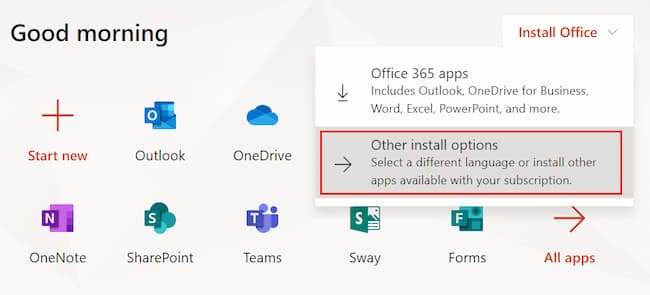
- On the main screen, above the application icons, select "Install Office".
- Choose "Other install options."
- A new window will open and you will be able to download Microsoft Office.
Image
Internet browsers
- You should have access to more than one browser, such as Chrome, Firefox, Safari or Edge (preferred when using Office 365). All browsers should be the most up-to-date version available.
Adobe Acrobat Reader
- You should have access to the most up-to-date Adobe Acrobat Reader.
My Apps
- It is recommended that students use My Apps, a virtual desktop where Microsoft Office software, Rush email and secure storage are provided and where you can log into the RULearning (Blackboard) remote classroom environment. Visit https://rush.sharepoint.com/sites/university for more information about the My Apps virtual environment, or get started by logging in at myapps.rush.edu.
Internet
- Rush Digital & Information Services suggests 50mb/s for the speed of your at-home internet, whether wireless or wired connection.
- If you don’t have at-home internet, ask a relative, neighbor or visit your local library.
- You may also be able to use your mobile phone to create a wifi hotspot to your computer. Your wifi hotspot will depend on your mobile service plan and data allowance. Learn how to use your phone as a wifi hotspot.